 KnobMixer
Guides / Windows 10 & 11
KnobMixer basics
Getting started with KnobMixer
Set up your keyboard knob or hotkeys to control app volumes on Windows.
1Install KnobMixer
KnobMixer is free keyboard knob volume control software for Windows 10 and Windows 11.
- Download KnobMixer for Windows from GitHub and run the installer.
- When KnobMixer opens after installation, set up your knob using the Set up your controls wizard. Follow the recommended setup below.
KnobMixer is designed to work with almost all regular and custom keyboards that send Windows volume keys or keyboard hotkeys.
Popular keyboards with volume knobs or rollers include the Keychron Q1 Max, Corsair K70 MAX, Logitech G915 X LIGHTSPEED, Razer BlackWidow V4 Pro and SteelSeries Apex Pro. Setup follows the controls your knob sends, so these instructions apply across brands.
In the rare case your knob does not work, try Settings → Diagnostics → Knob check. If you still need help, follow the reporting instructions at the end of this guide.
2Assign your controls
In the Set up your controls wizard, use this recommended setup:
- Click Assign beside Vol −, then turn your knob left or press the volume-down key you want to use.
- Click Assign beside Vol +, then turn your knob right or press your volume-up key.
- Assign Press knob to your knob press. A quick press switches to the next app.
Choose how you want to mute:
Hold to mute lets you use all the controls with just the knob: turn to change volume, click to switch apps, and hold to mute or unmute. Muting is slower because you need to hold the button each time.
For faster, one-press muting, turn Hold to mute off and assign another available key to Mute. Recommended: if you do not need F12, use it as your mute key — it is often near the knob. While KnobMixer is running, an assigned F12 works in KnobMixer and other apps no longer receive it, avoiding conflicts.
Click Finish setup and follow the wizard’s short control test.
If your knob’s keys can be changed: use your keyboard brand’s software to set them to uncommon keys such as F13, F14 and F15 (or other keys up to F24), then assign them in KnobMixer. This is recommended to avoid using keys you need elsewhere. If your knob’s keys cannot be changed, you can still use KnobMixer with its existing volume controls.
Already set up? Click a knob at the top of KnobMixer to edit its controls. You can also use keyboard keys if you do not have a clickable knob.
3Knob control types
Click a knob at the top of the main window, or select Add knob. Under What this knob controls, choose:
- Cycle — switch between open apps playing audio. This is the recommended starting option.
- Specific apps — control only the apps you assign.
- System volume — adjust the Windows master volume.
- Active Window — control the app currently in focus.
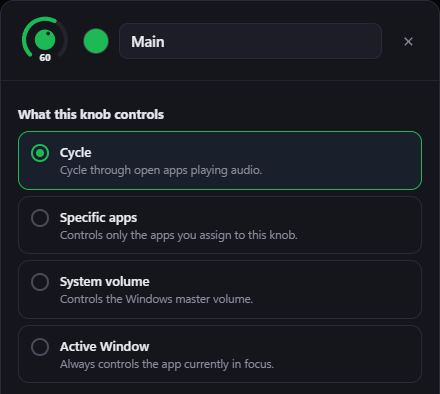
Click Done or Add knob to save.
To make your knob control only one app (for example, Spotify), follow Control only one app with your knob or hotkeys.
4Setup complete
Play audio from multiple apps. With Cycle selected, click your knob: a popup should appear and show it switching to the next app with each click. Turn the knob to change the selected app’s volume, then try your mute control.
If it does not work, open Settings → Diagnostics → Report a problem in KnobMixer and click Report. Describe the issue, leave Include log files on, and add your email so support can reply and help resolve it.
Alternatively, contact [email protected] directly.